Managing versions
Note
This section only applies to installations such as the django-cms-quickstart project which use the djangocms-versioning package for versioning. django CMS’ modular architecture allows for other versioning packages, too.
Django CMS keeps track of page revisions, allowing you to revert to previous versions if needed. Here’s a step-by-step guide on how to manage versions:
Accessing the “manage versions” view:
Either
Select “Pages…” in the page menu of the toolbar and look for the page the versions of which you want to manage.
Click on the status indicator to open the dropdown menu
Select “Manage versions…”
or
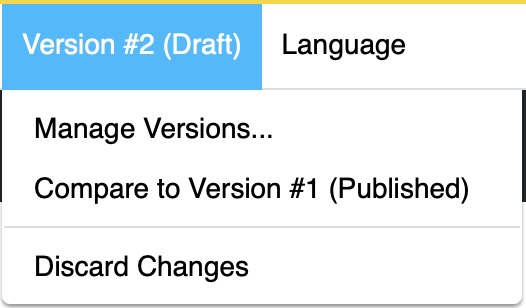
Preview or edit the page the versions of which you want to manage.
Click on the version menu and chose “Manage versions…”
Inspecting all versions:
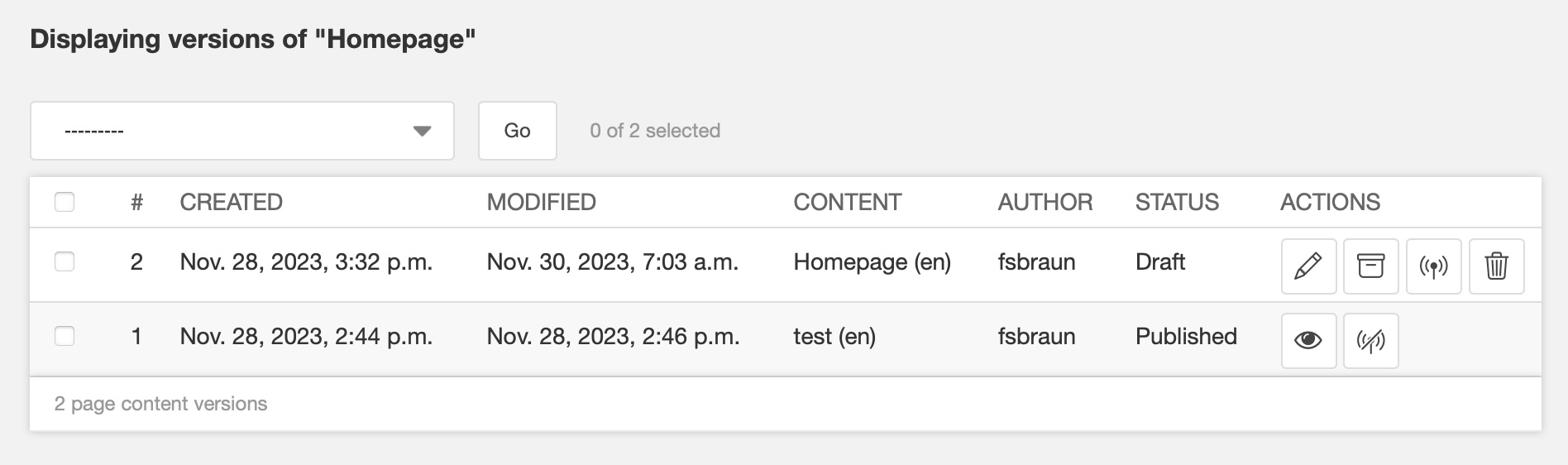
Created and modified dates
Title and language
Username of the author
Status: Draft, Published, Unpublished, and Archived
Action buttons
Acting upon versions: Actions differ by status of the version. They include
Edit (pencil): Edit this version (draft) or create a new draft from this version (published)
Archive: Mark this draft as archived for later usage
Revert: Create new draft from this archived or unpublished version
Publish: Publish this draft
Unpublish: Make this published version unavailable
Delete: Delete this draft version
View: Preview this version
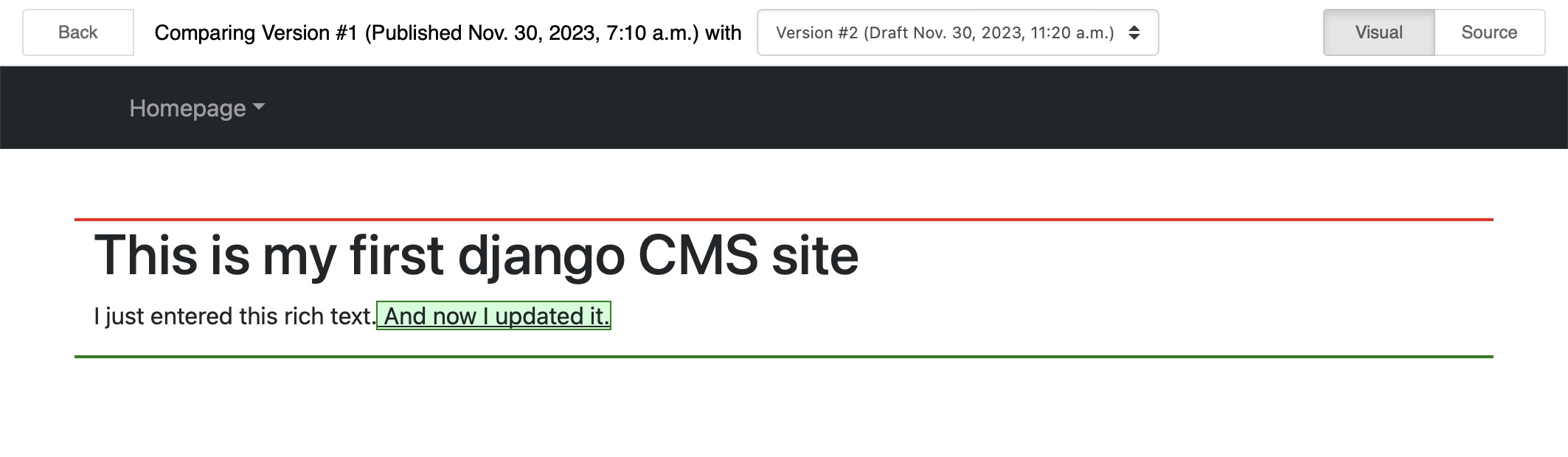
Comparing two versions:
Select exactly two versions to compare by checking the box on their left side
From the pull-down menu marked
-------select “Compare versions”Click “Go”
Note
Only draft versions can be deleted. Outdated versions are kept on purpose.
Managing versions in Django CMS allows to understand the history of content. Drafts can be archived for later reuse. All versions currently public or once public are marked “published” or “unpublished”, respectively. The content of versions can be compared with each other.